

How to Accept Invite and Set Up Libraries
Follow these steps to accept your Timflix invite, view the shared server, and pin the libraries you want on your Plex home screen.
1) Sign in to Plex
- Go to plex.tv and login with your Plex account credentials


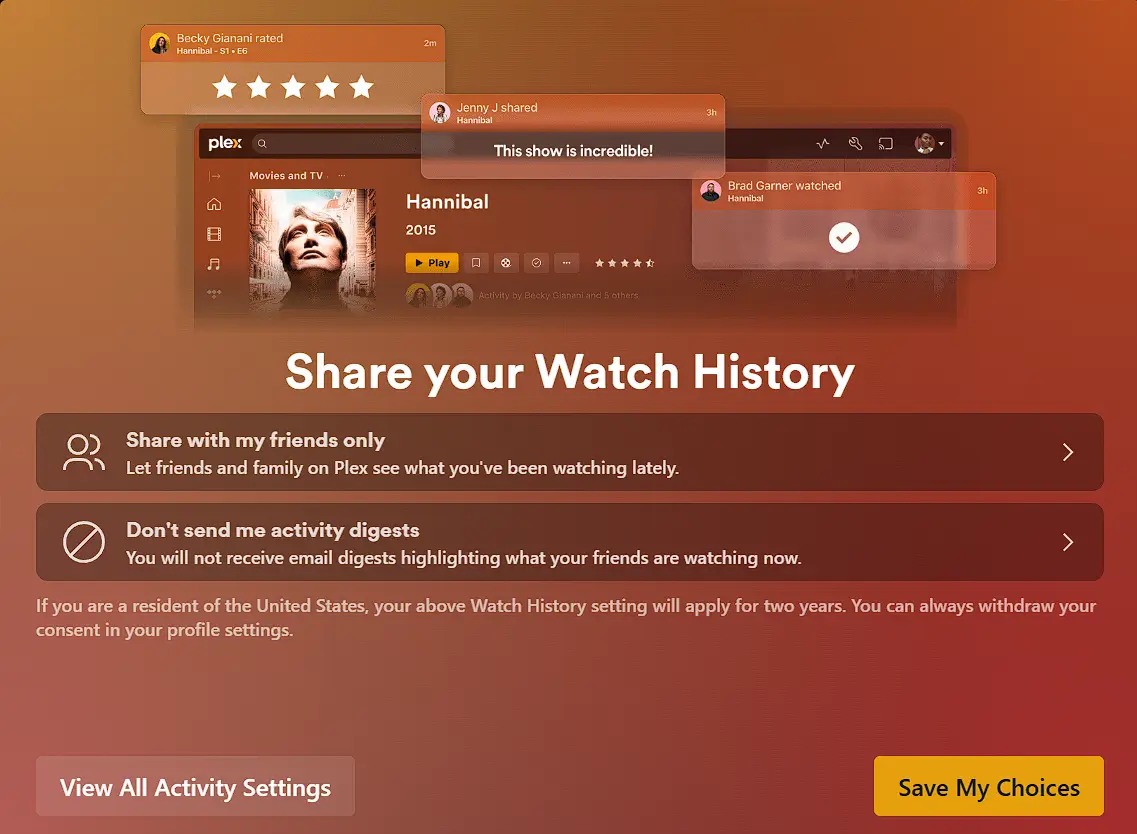
**Tip:** Plex may prompt you about **Sync Watched Status**—choose what works best for you.
Timflix recommends Share with my friend only or Private and Don't send me activity digests
2) Accept the Timflix server invite
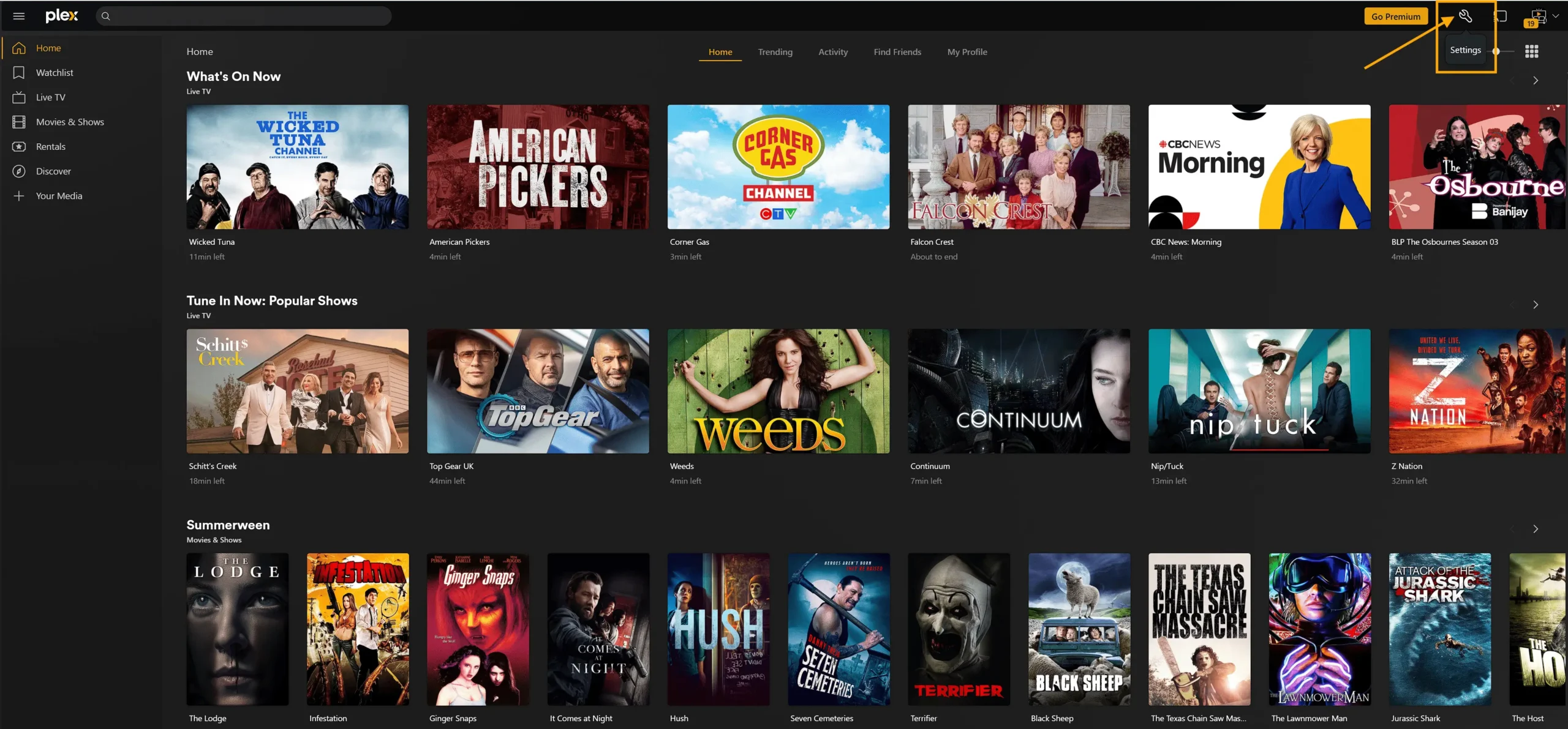
- Open **Settings** (wrench icon, top-right).
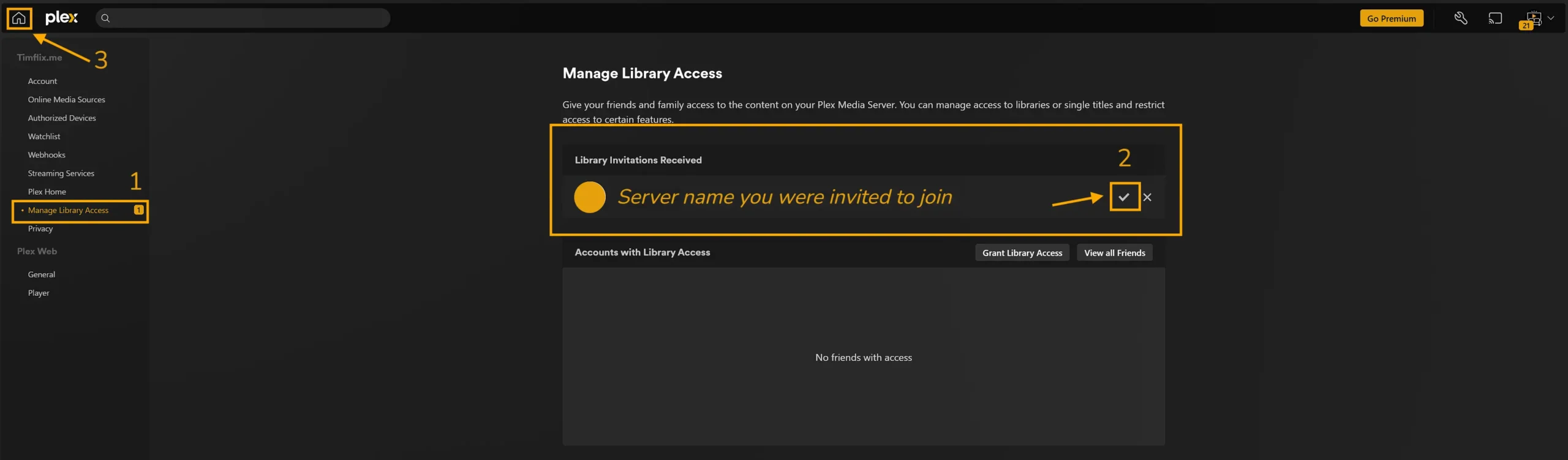
2. Go to **Manage Library Access** (or **Users & Sharing** → **Sharing**).
3. Under **Invitation received**, verify the server name and click the **✓ (checkmark)** to accept.
4. Click the **Home** icon to return to the Plex home screen.
3) Pin the Timflix libraries to Home
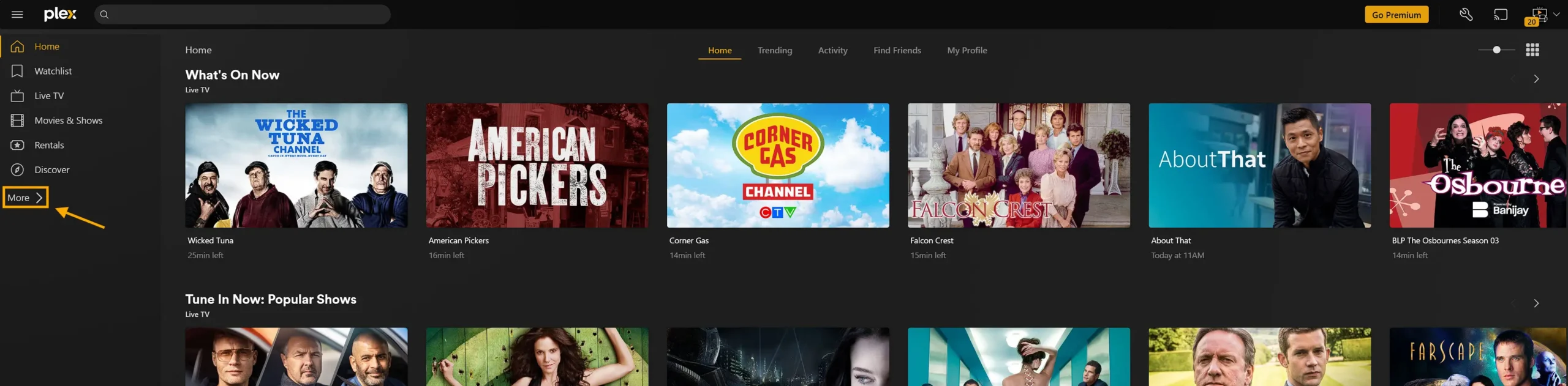
1. Click **MORE** and choose the **Timflix** server.
2. Browse the available libraries.
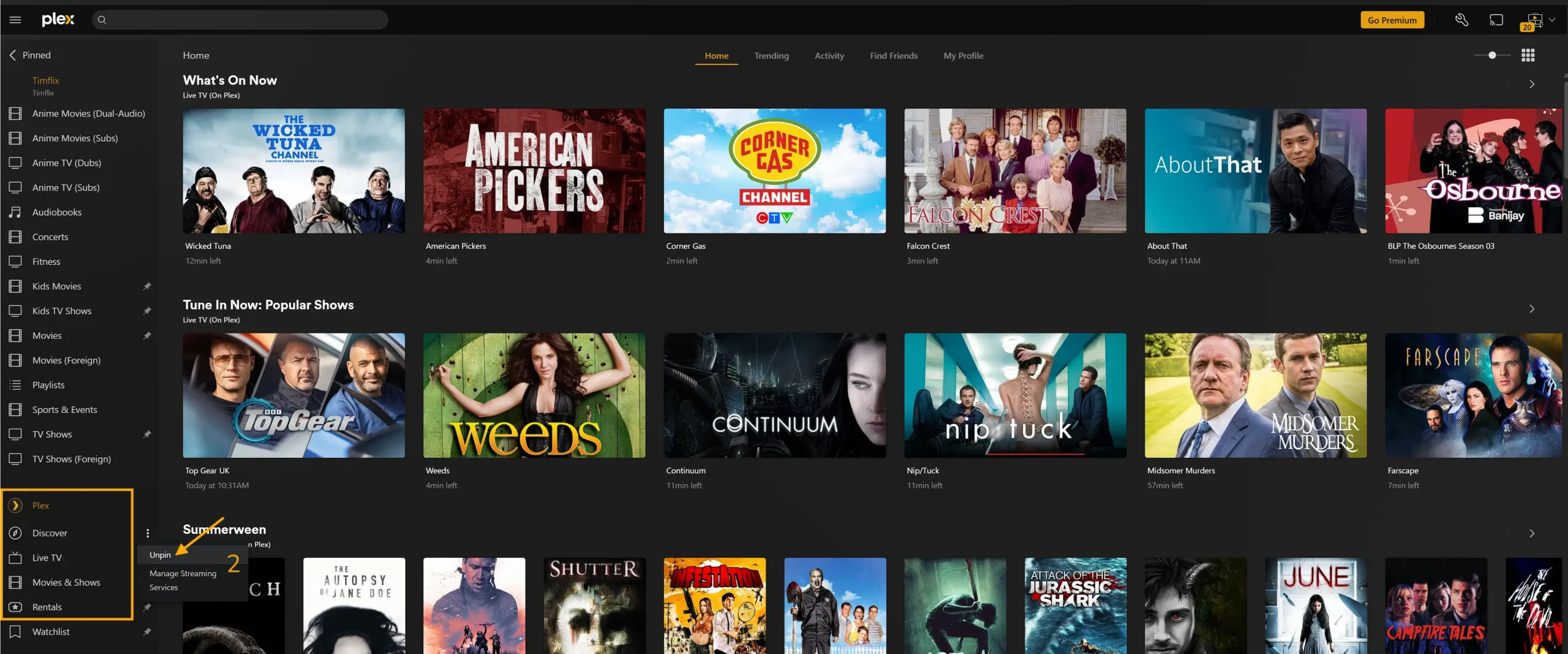
3. For each library you want on your Home screen, click the **ellipsis (…)** and choose **Pin**.
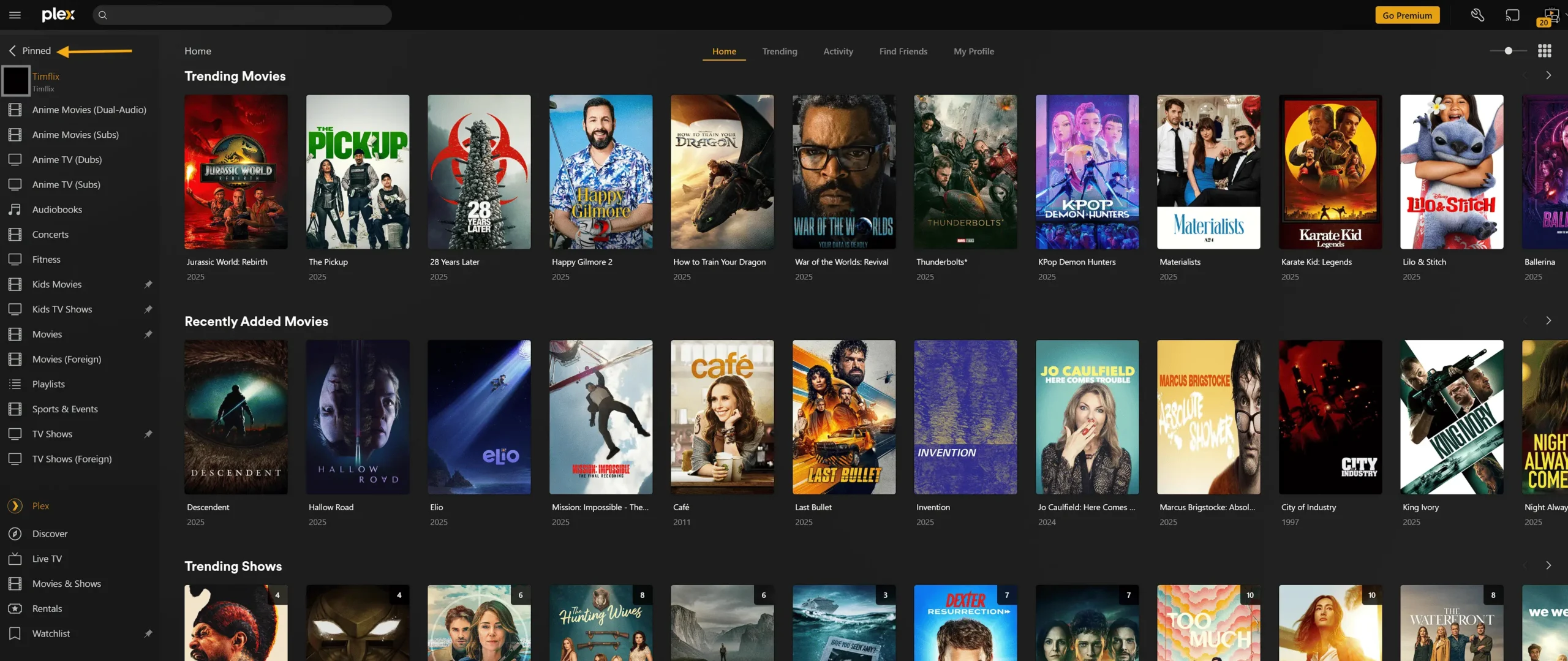
4. At the top-left, click **PINNED** to return to Home and see your pinned libraries.
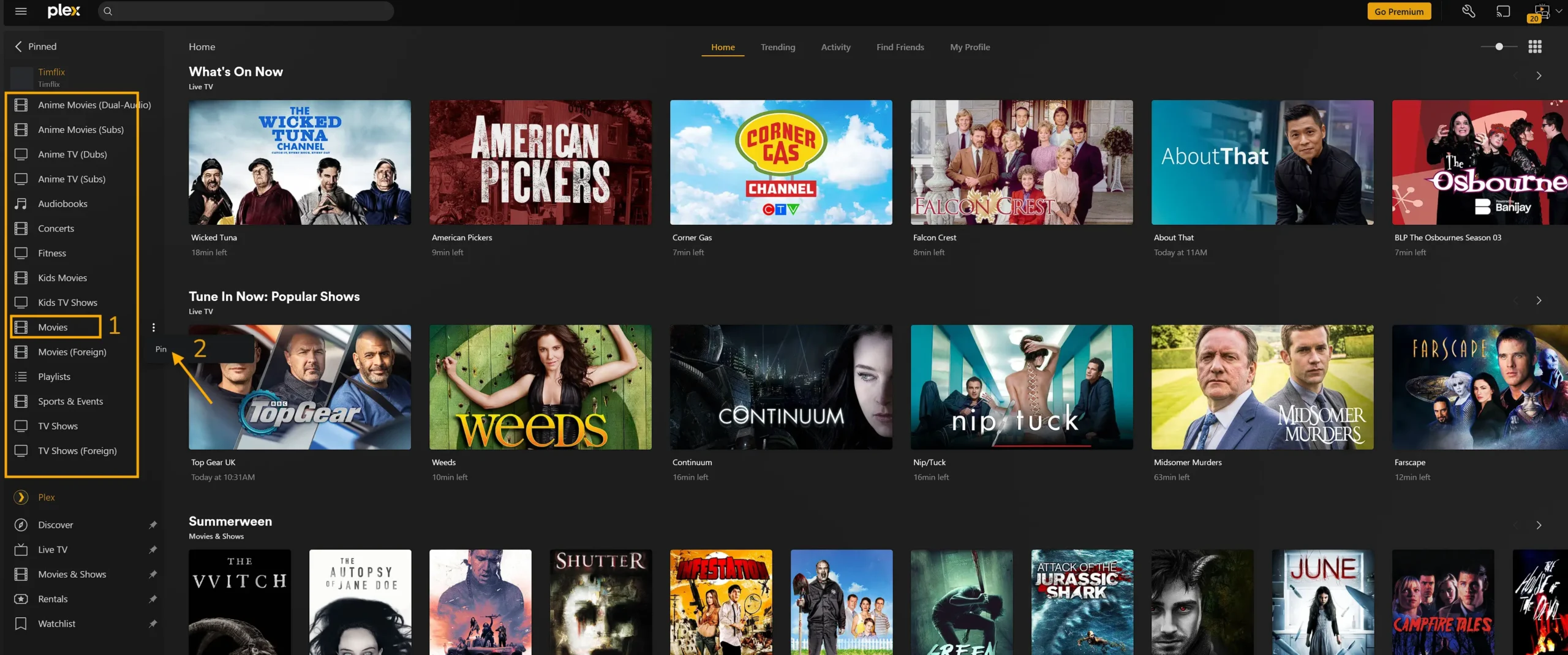
**Note:** Plex has its own promotional rows and content. These are separate from the Timflix libraries shared with you.
We do suggest you leave Watchlist pinned Click here to Learn more about Watchlist
In the upper left, click the PINNED menu item to return to the Home section of Plex
You should see your pinned libraries listed on the home page, you can also reorder them as you see fit.
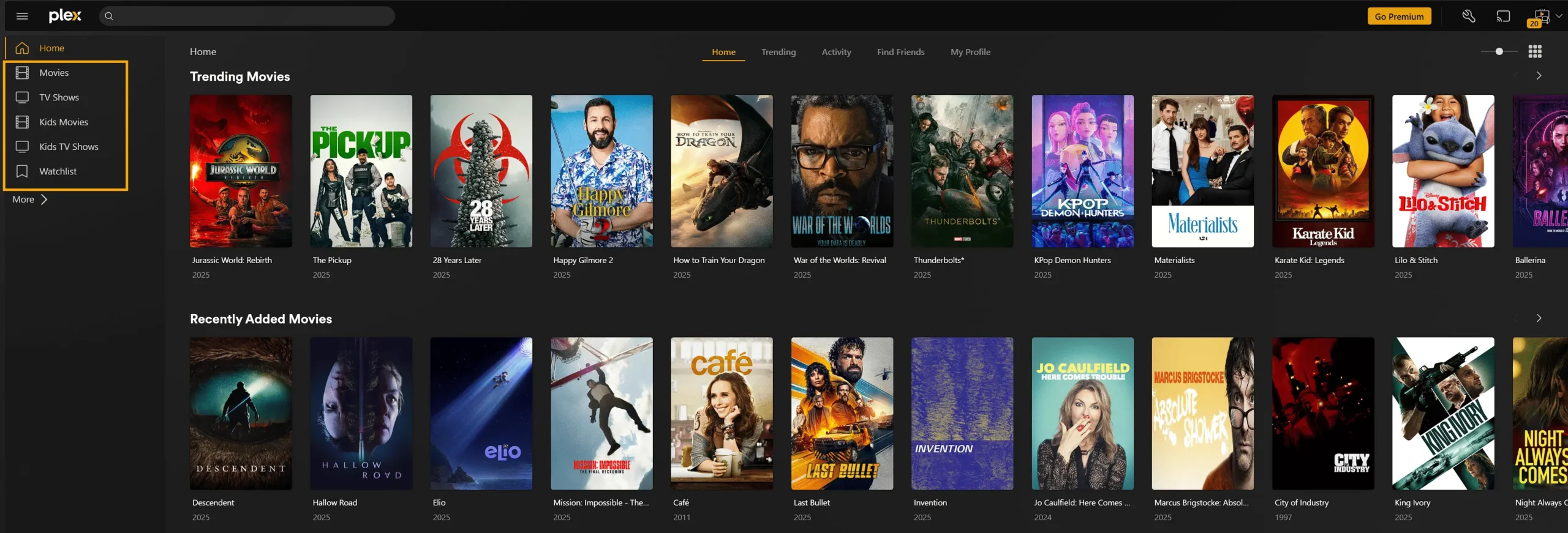
4) Reorder your pinned libraries
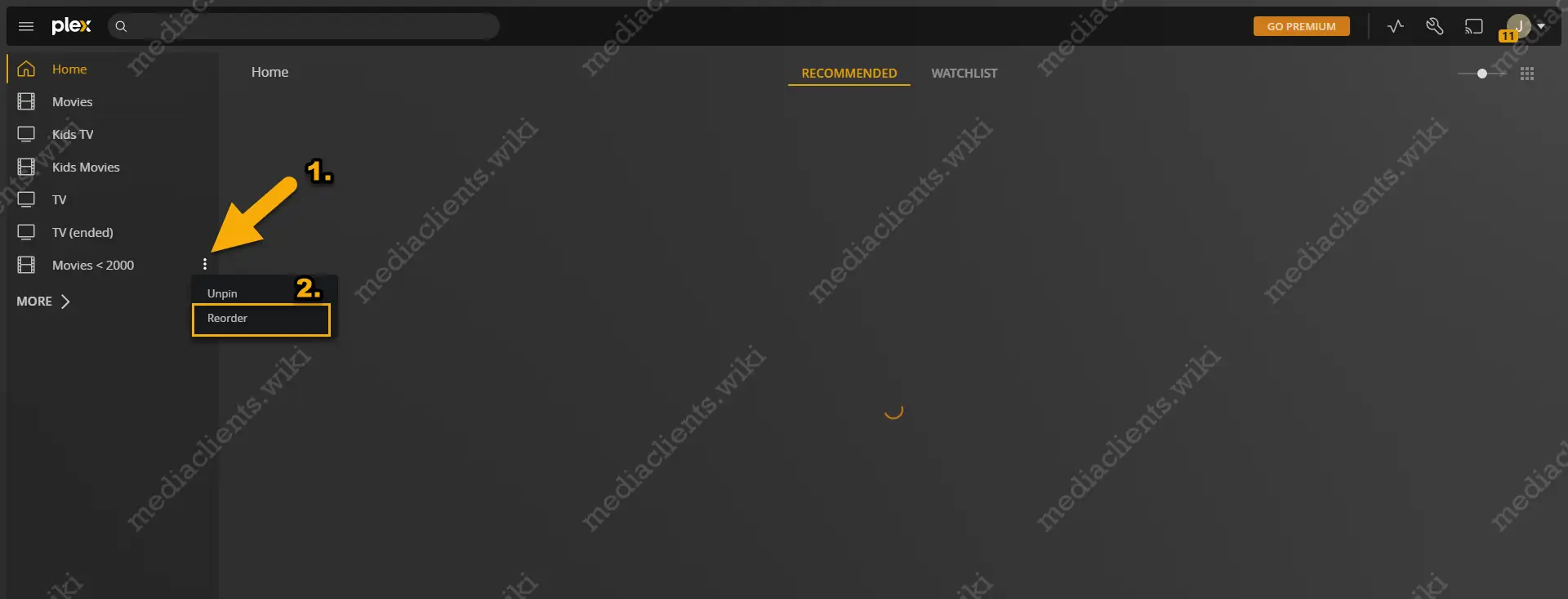
1. On Home, locate any pinned library.
2. Click the **ellipsis (…)** and select **Reorder**.
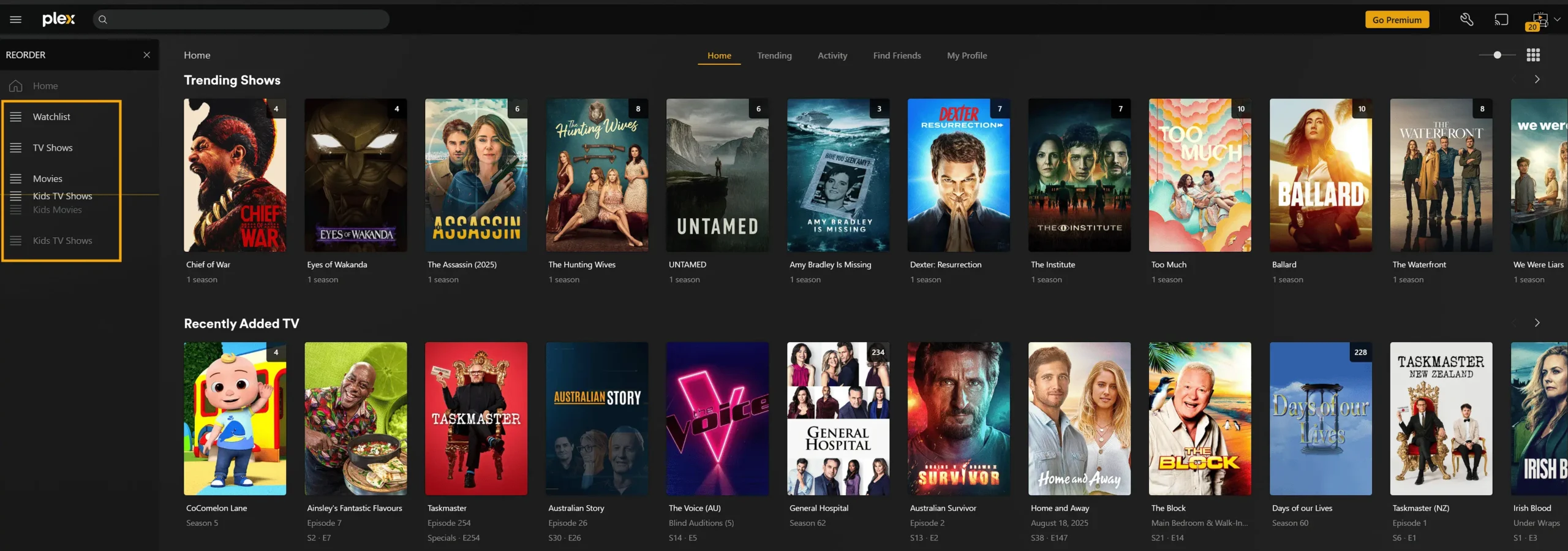
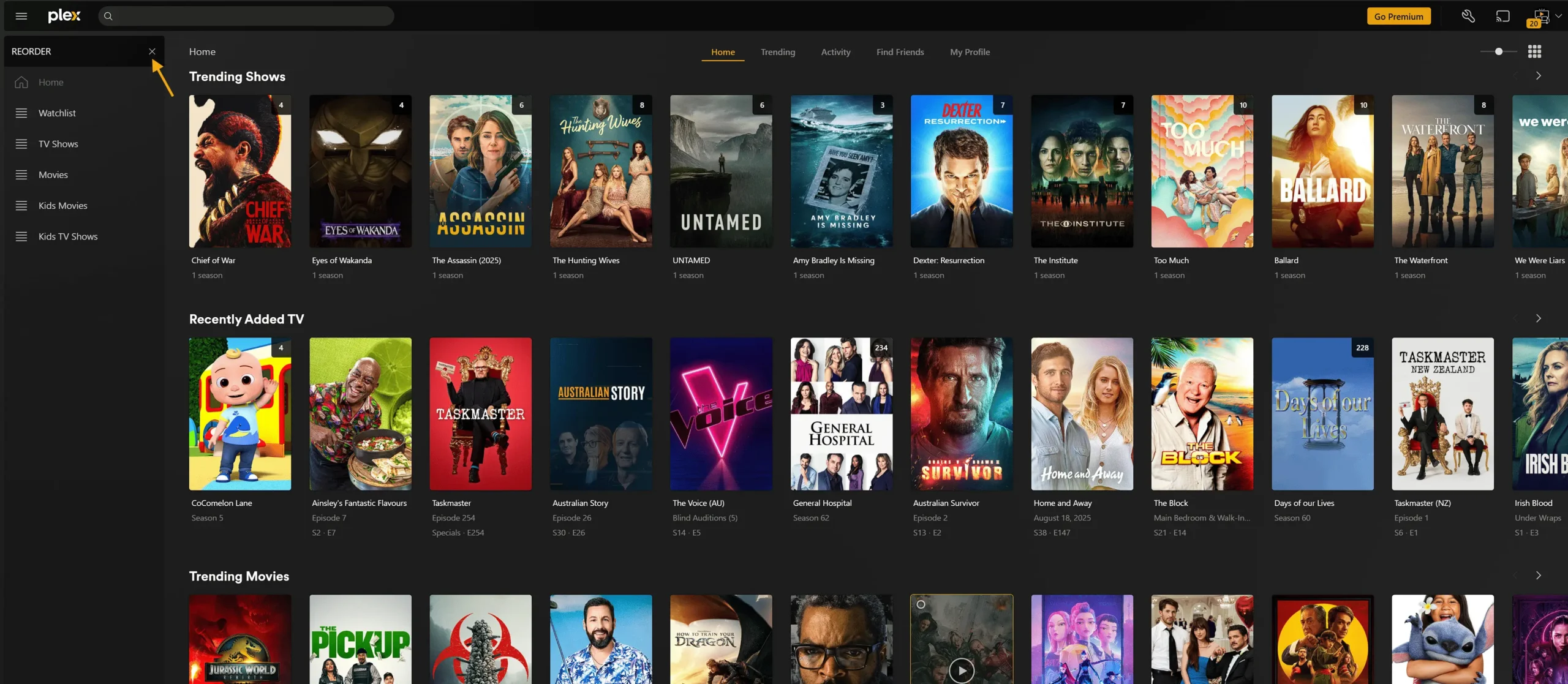
4. Click the small **×** to exit the reorder mode.
You’re all set—enjoy your streaming experience with Timflix!
Troubleshooting
• Confirm the email on your Plex account matches the invited address.
• Refresh Plex Web, or sign out and back in.
• Check Settings → Users & Sharing to confirm the share is active.
• Sign out/in of your app, then relaunch Plex Web.
• Some apps cache layout—force-close and reopen.
• Revisit Home → PINNED in Plex Web to verify.