
Android Mobile
Follow the steps below in order to change the Plex video quality settings on an Android Mobile device.
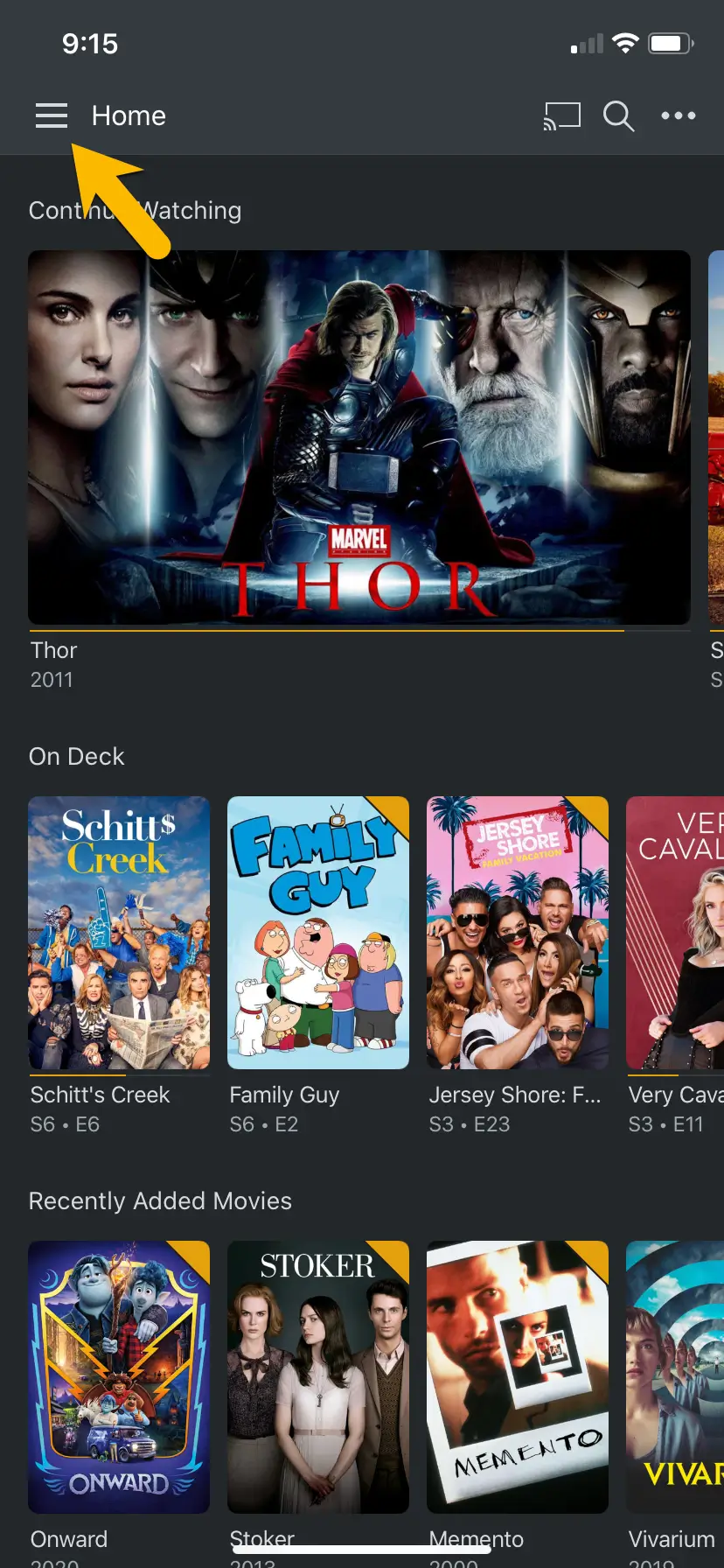
From the home screen hit the "hamburger menu" button in the upper left hand corner.
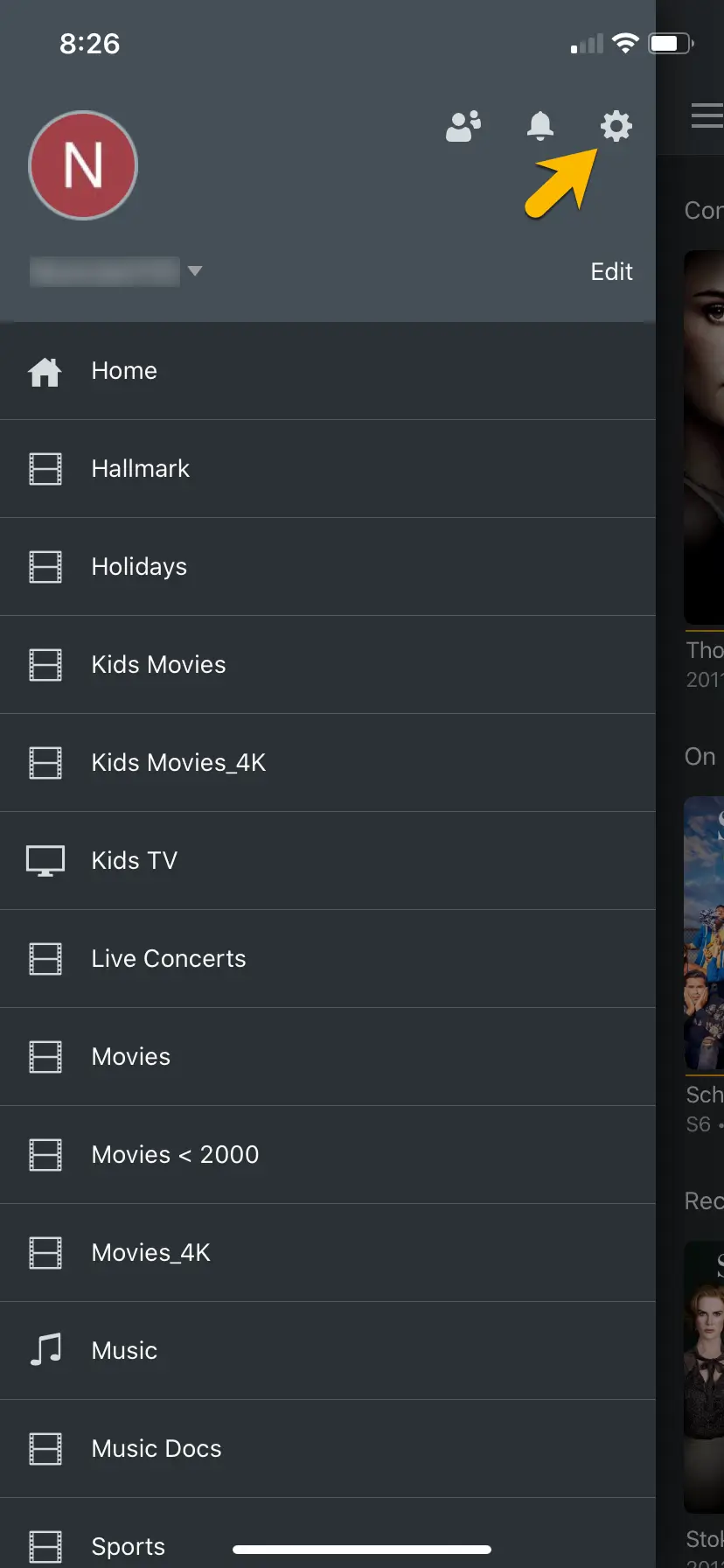
From there find the settings icon that looks like a Gear on the menu screen that slides out from the left.
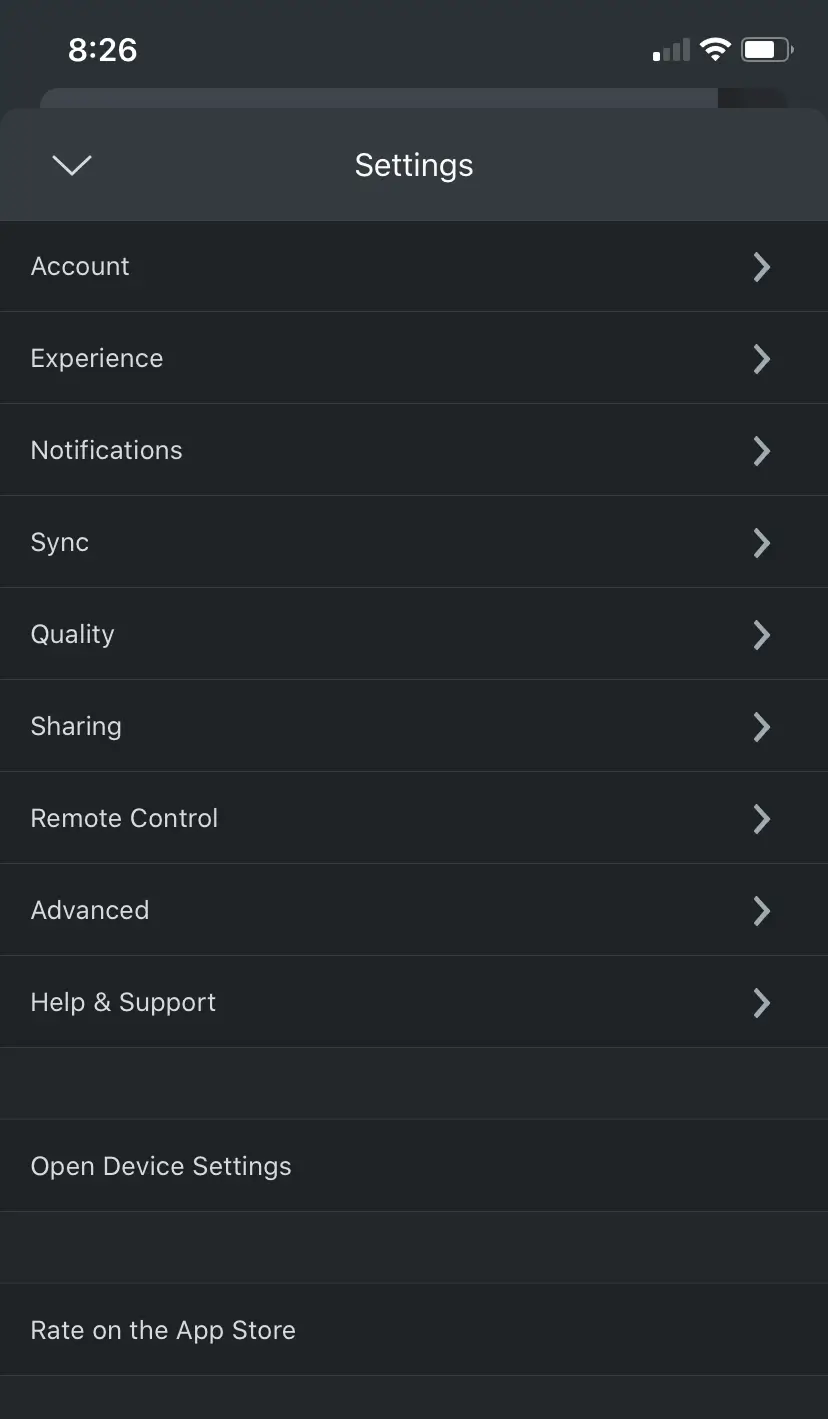
Settings > Quality >
From the Settings menu find and select the Quality section:
This is what you should see when you first open the Quality Menu section:
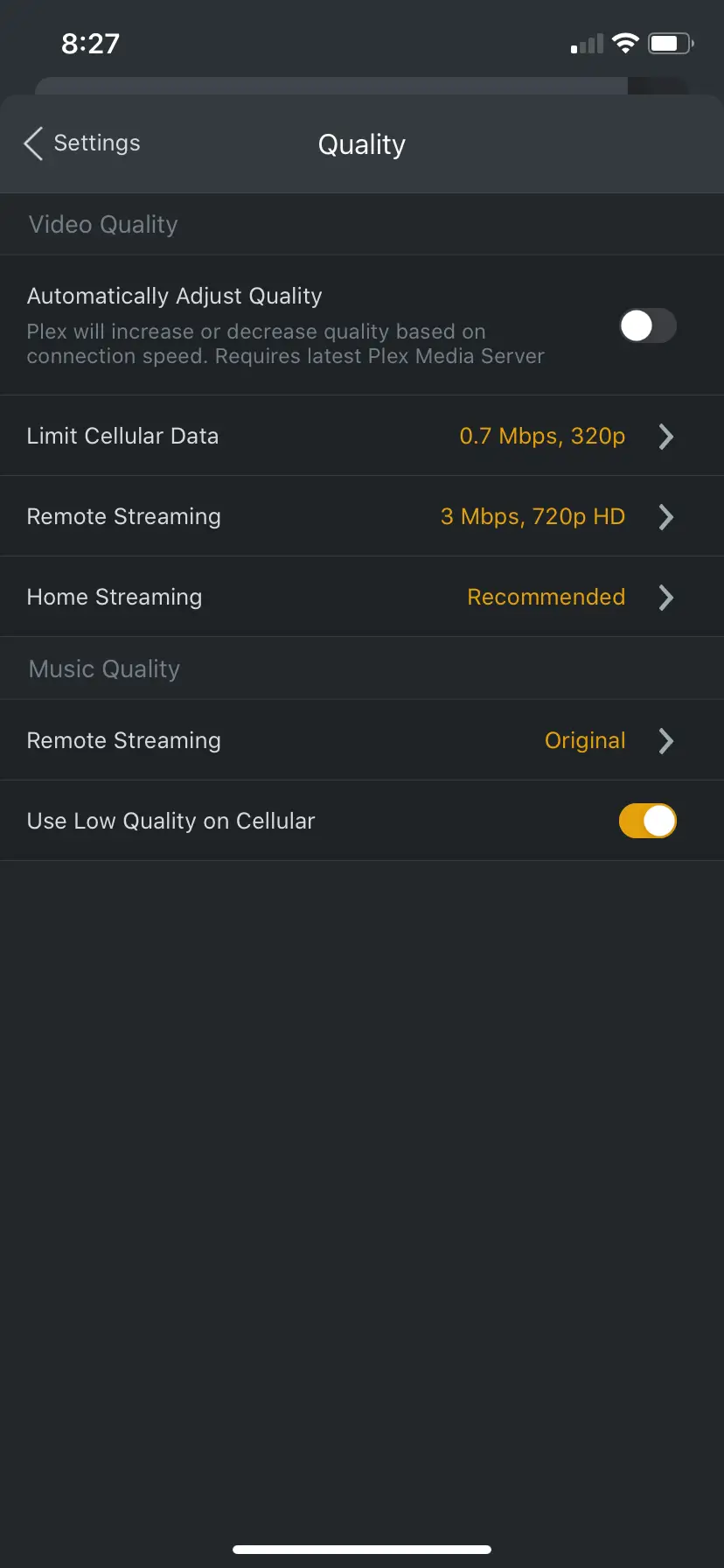
We have to change a few things here, First click on Remote Streaming, now you'll notice that there isn't an option for Original or Maximum like a lot of the other device. That's because it's hidden by default.
Select the Show All menu option
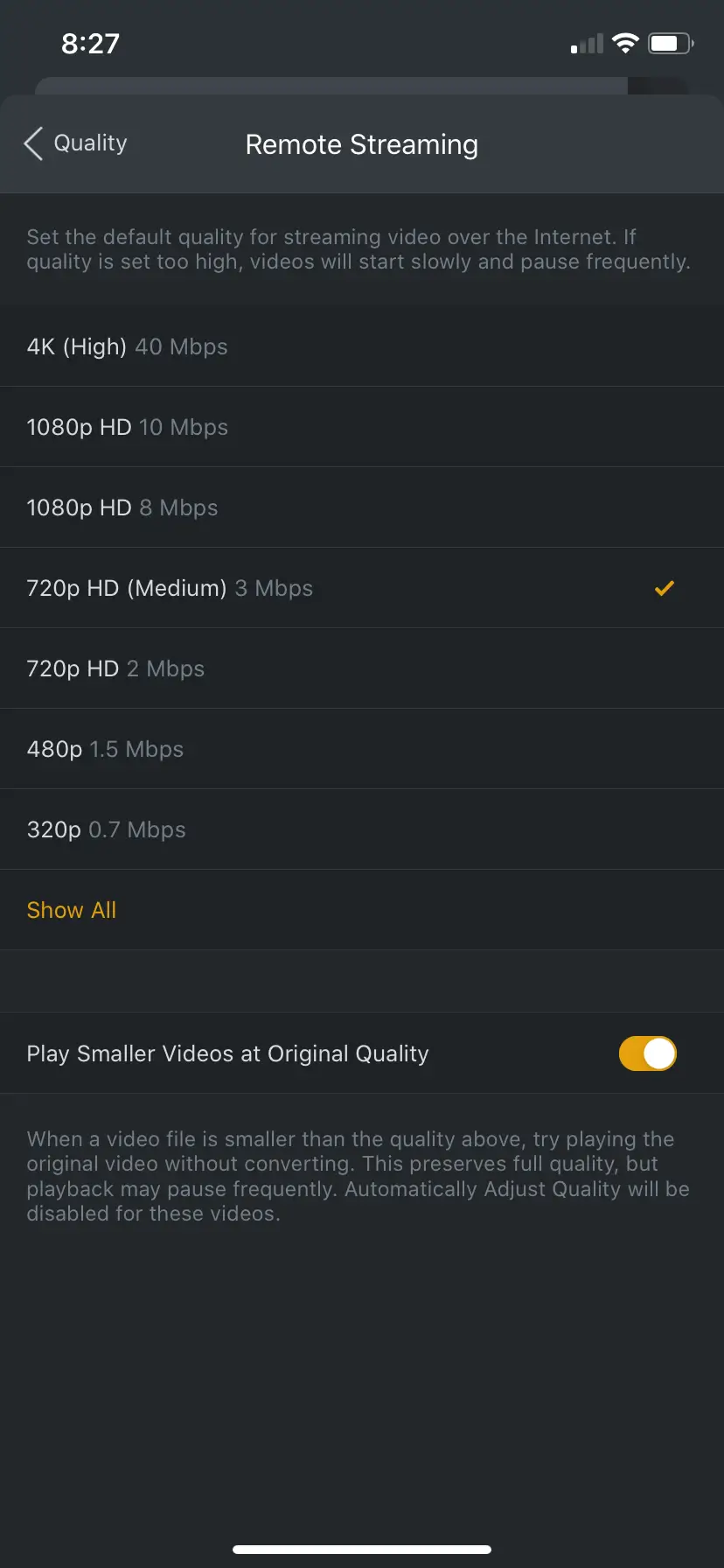
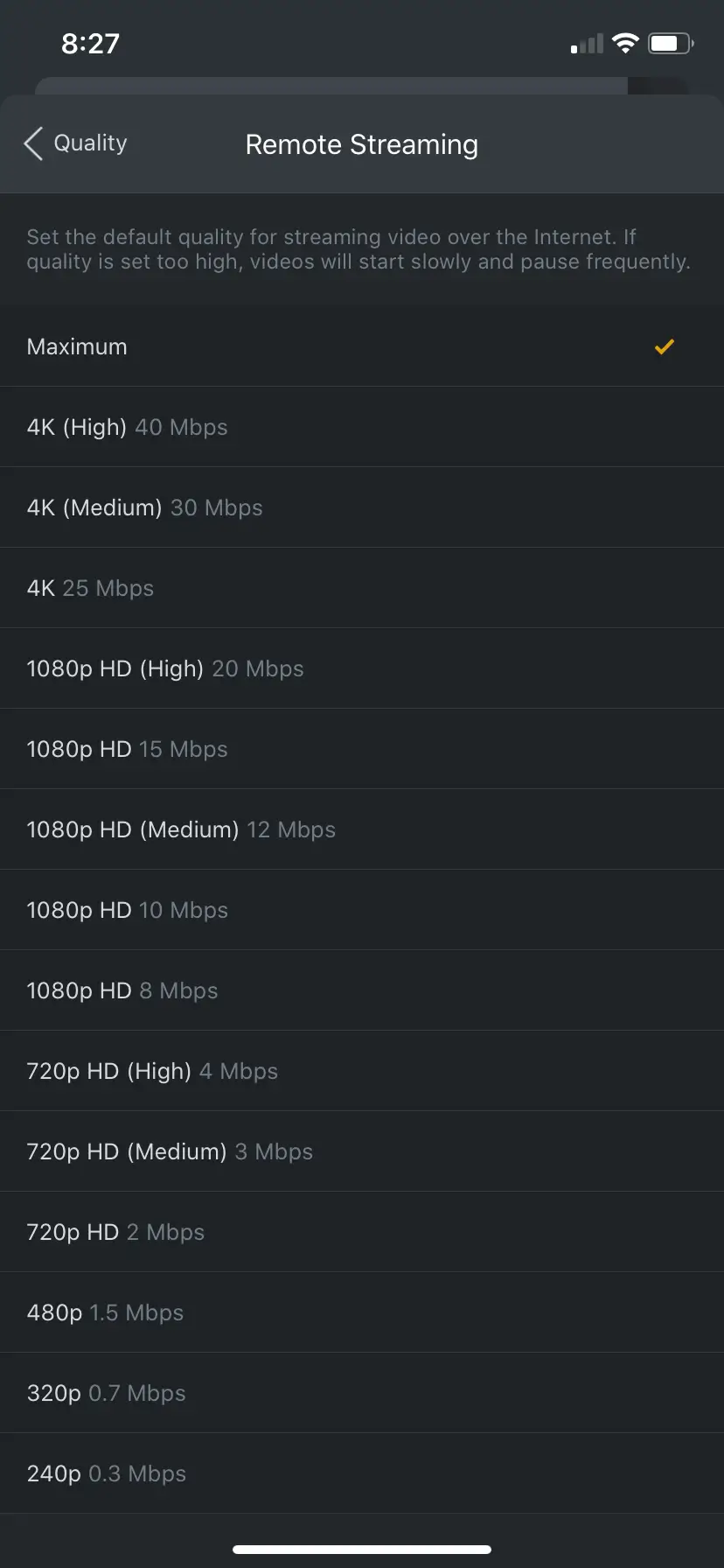
Then you will see the option we are looking for:
Select: Maximum
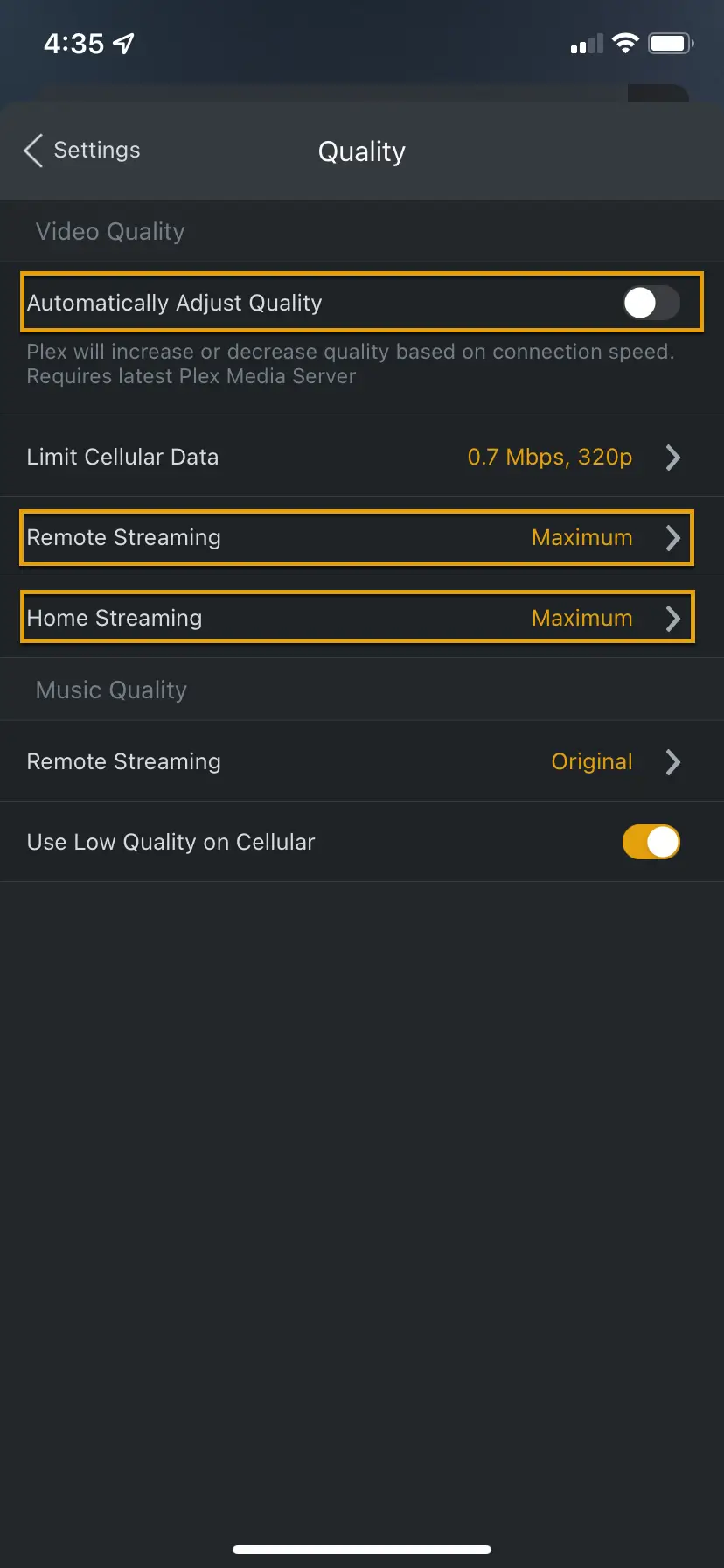
Hit the < in the upper left and you will return to this screen, make sure your selections match these below:
Automatically Adjust Quality: DISABLED
Limit Cellular Data: 0.7 Mpbs, 320p
Remote Streaming: Maximum
Home Streaming: Maximum